Changing the way you vibe.
Coming to axeMCP: connect an axeTasker notes folder to a code project. Note an idea, and your coding agent will pick it up and work it into the project.

Ideas for a project rarely show up while you’re at your desk with the code open. They show up on a walk, in a meeting, or halfway through a different task. Most of them end up in a notes app and never make it into the project.
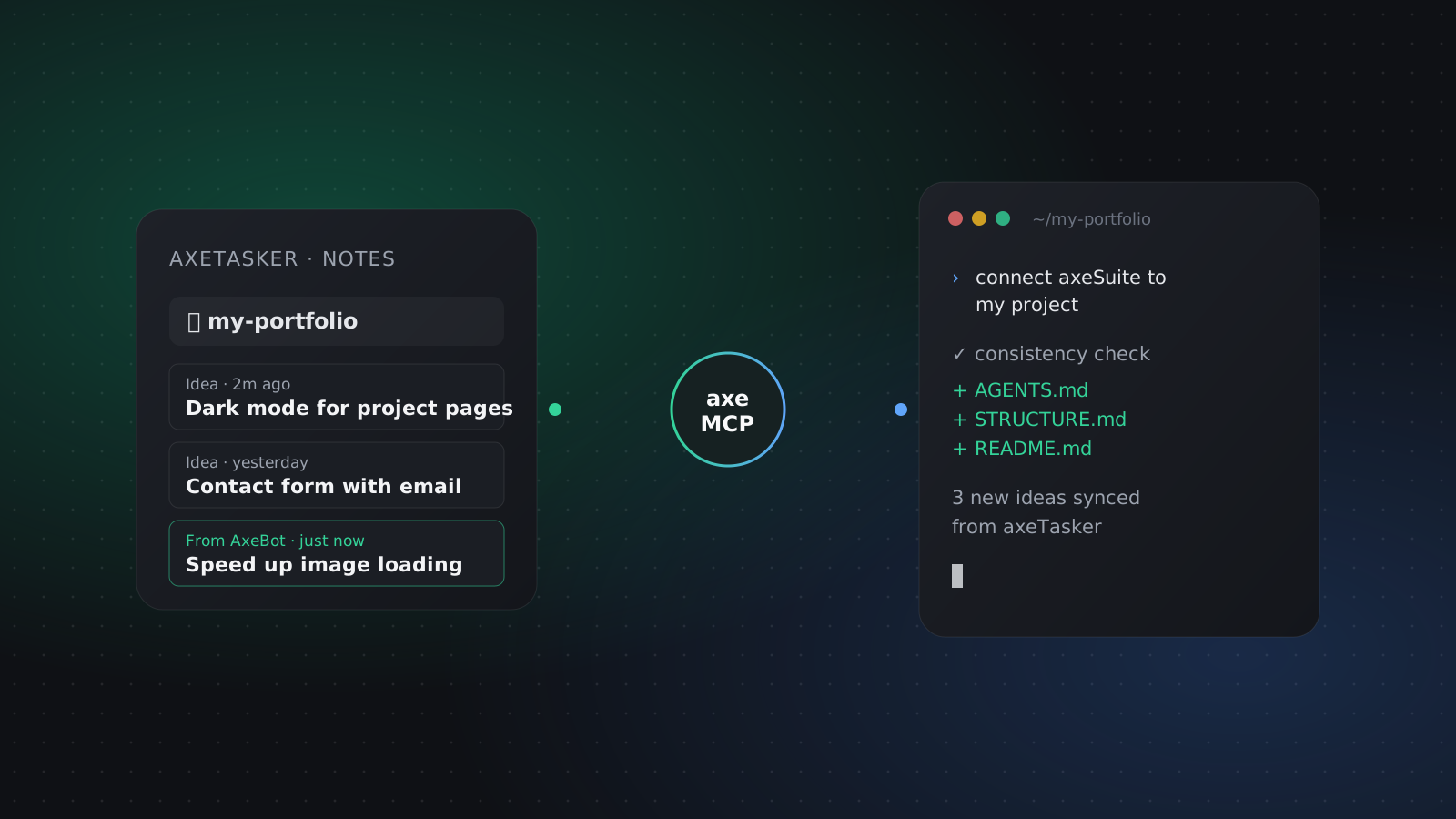
We’re building a way to close that gap. axeMCP, the MCP server behind AxeAI, will connect an axeTasker notes folder to a code project. You’ll write ideas down in axeTasker as usual, and your coding agent will pick them up and work them into the project.
1. Write the idea down
You’ll make a folder in axeTasker’s notes for your project and add a note whenever an idea comes to you: a feature, a bug, a refactor you keep putting off. You’ll also be able to ask AxeBot to do it for you, for example “add a note to my portfolio folder: dark mode for the project pages”.
2. Connect the folder to your project
First your coding agent needs to be connected to axeMCP. That already works today with Claude Code, OpenCode, Antigravity and other MCP clients; the setup for each is at Connect AI. Once the feature ships, you’ll open your project and tell the agent:
connect axeSuite to my projectThe agent will then ask you how you want the project connected. There will be two ways.
The project gets set up for fully agentic coding and follows the axeMCP Project Spec.
For heavy vibe coders
Your project stays as it is. New ideas land in the README, and you decide when the agent builds them.
For coding by hand, with an agent to help
Option 1: Axeify the project
Choose this and the agent will write a set of .md files for your project from scratch. Among them is
STRUCTURE.md, a map of the project that guides agents around it. The agent will also update your AGENTS.md
or CLAUDE.md and add a new consistency check.
The consistency check will run on every message you send the agent, and do two things:
- Sync your ideas. New notes in the connected axeTasker folder get written into the project’s
.mdfiles, so the agent always works from your latest plans. - Keep the project in shape. When a new file appears in the project, the check updates the
.mdfiles that describe it, likeSTRUCTURE.md. If those files say the new file belongs in a different folder, the check moves it there.
Together these will make your project compatible with the axeMCP Project Spec: the docs describe the project, and the project follows the docs. This is the option for fully agentic coding. If you vibe code a lot, it will save you from re-explaining your project and your plans to the agent every session.
Option 2: Just add axeTasker
Choose this and the agent will add only the consistency check, and create your README.md or add a section to
it. When new notes appear in the connected axeTasker folder, the check will add them to the README and ask you
when to build them. Nothing else in your project changes.
This is the option if you write most of the code yourself and use an agent for help. Your ideas will still reach the project, but you stay in charge of when they’re built.
Tasks that update themselves
axeMCP also updates the status of your tasks. When you complete a task with an AI, it marks that task done in axeTasker for you. This is off by default; turn it on in the config.
Get ready now
Two of the three steps already work today, so you can be set up for the day it ships:
- Make a notes folder for your project in axeTasker and start collecting ideas.
- Connect your coding agent to axeMCP from Connect AI.
- When the feature ships, tell the agent
connect axeSuite to my projectand pick a mode.